Connect your tunnel from Claude
This guide shows how to plug your MCP Gateway tunnel into claude.ai using the Connectors UI — no JSON config, no desktop app.
Prerequisites
- A running tunnel (see Quickstart and Examples).
- A public URL in the form
https://<TUNNEL_ID>.mcp-gateway.info/mcp. - A Claude account with access to Connectors (Pro / Team / Enterprise).
Step 1 — Open Settings
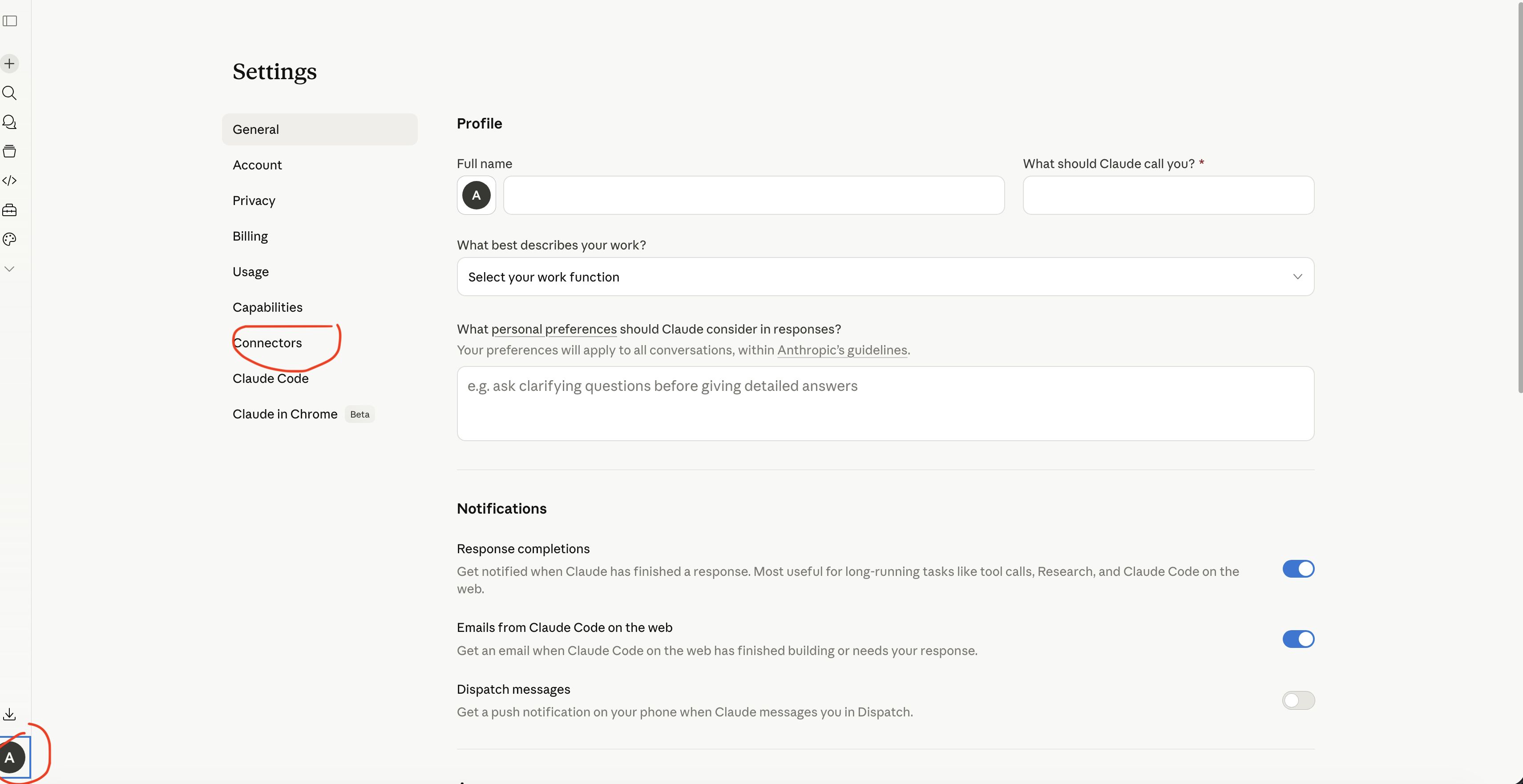
In claude.ai, click your avatar in the bottom-left corner and pick Settings. You'll land on the General tab.
Step 2 — Go to Connectors
In the Settings sidebar, choose Connectors. You'll see Anthropic's built-in integrations (GitHub, Gmail, Google Calendar, …) and, at the bottom, any custom connectors you've already added.
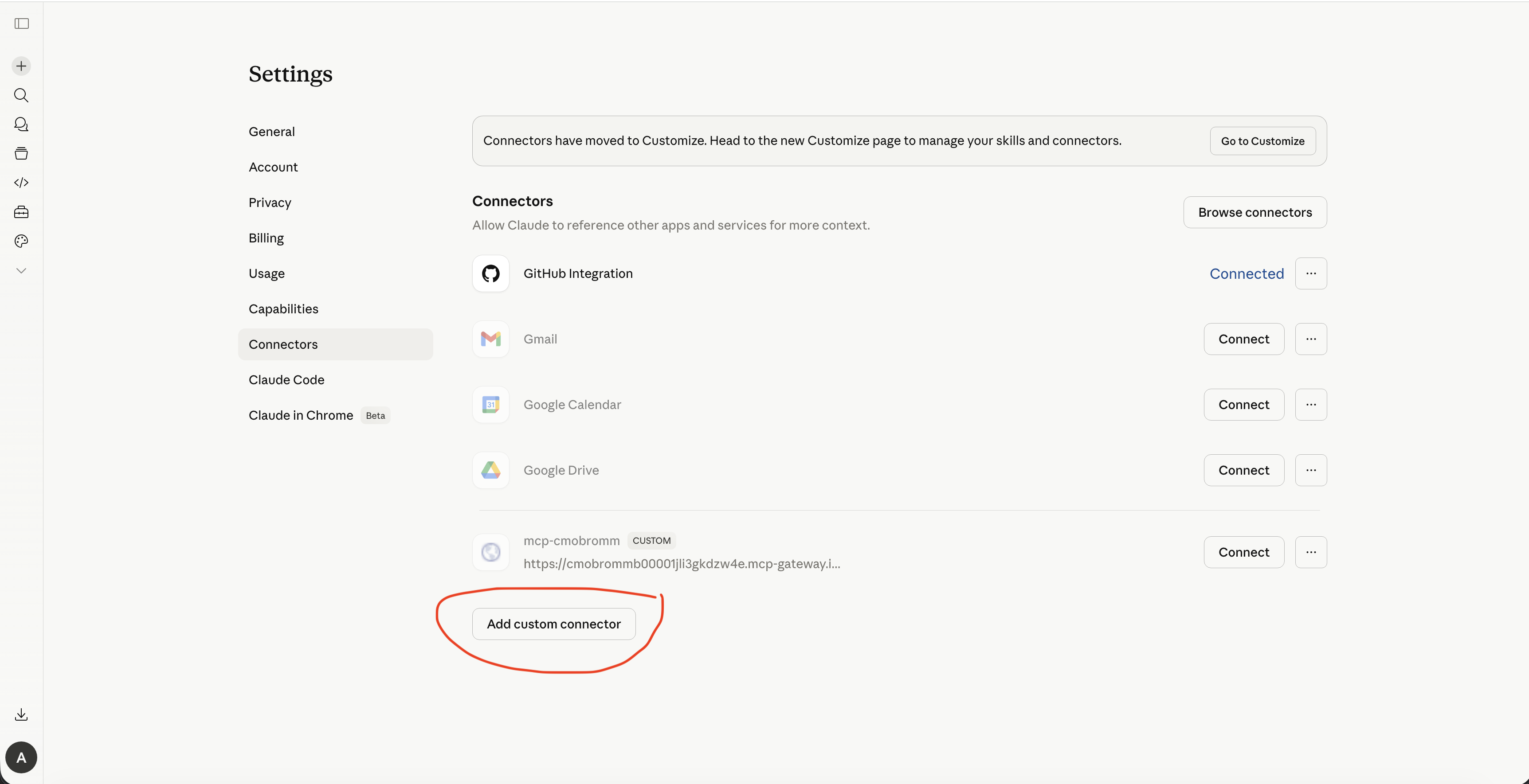
If you see a banner saying "Connectors have moved to Customize" — that's Claude rolling the feature into the new Customize page. Both routes still work. Custom connectors live under the same dialog described below.
Step 3 — Add a custom connector
Click Add custom connector at the bottom of the list. A modal opens with two fields:
- Name — any label, e.g.
MCP Gateway. - Remote MCP server URL —
https://<TUNNEL_ID>.mcp-gateway.info/mcp
Leave Advanced settings alone — the Gateway tunnel doesn't need OAuth.
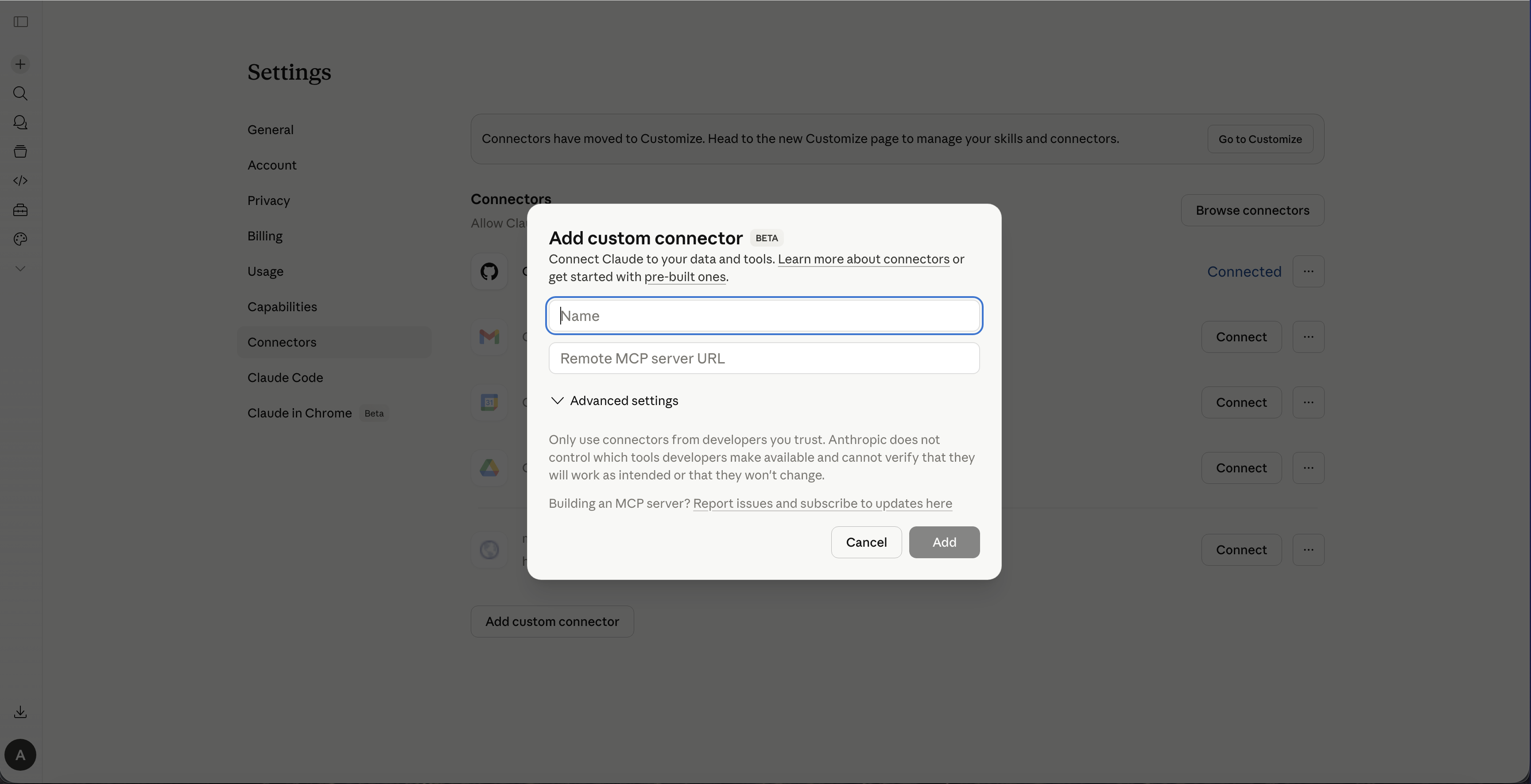
Click Add. Claude probes the URL, lists the tools your MCP server exposes, and the connector appears in the list with a Connect button. Hit Connect to enable it.
Step 4 — Use it in a chat
Open a new chat. Click the tools icon below the prompt, toggle your custom
connector on, and Claude will route tool calls through
https://<TUNNEL_ID>.mcp-gateway.info/mcp for that conversation.
Troubleshooting
- "Failed to connect" — confirm the URL ends with
/mcpand thatmcp-gw createis still running on your machine. Hit the URL withcurlto verify it's reachable. - No tools listed — your local MCP server probably crashed.
Check the terminal running
supergateway(or your native server). - 502 / 504 in claude.ai — same as in the main troubleshooting page; the agent is offline or the local server didn't respond in time.
Security notes
- Anyone who has your
https://<TUNNEL_ID>.mcp-gateway.info/mcpURL can call your local MCP server. Treat it as a credential. - If a URL leaks, delete the tunnel with
mcp-gw rm --id <TUNNEL_ID>and create a fresh one withmcp-gw create --new— the old URL stops working immediately.